
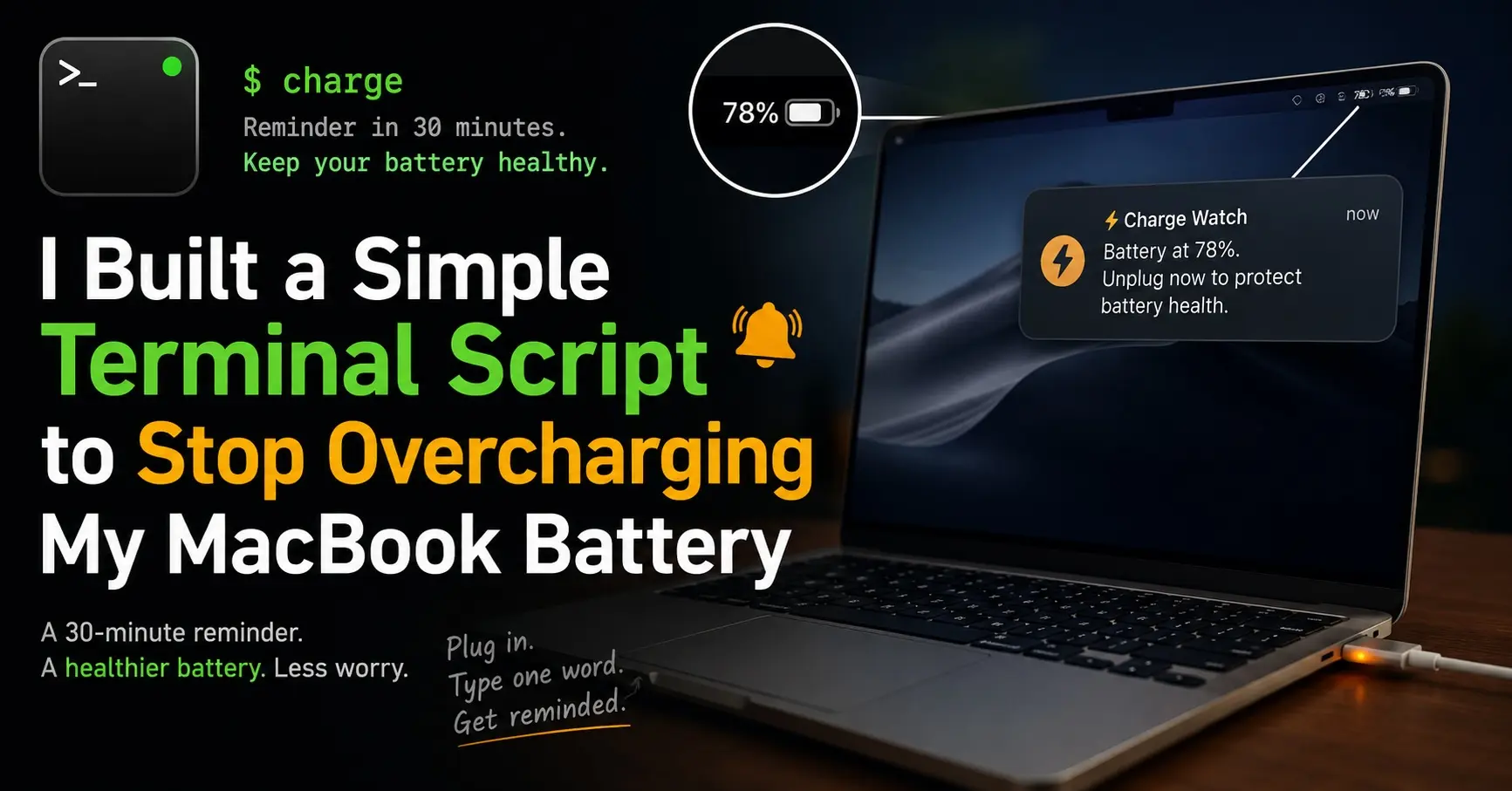
I Built a Simple Terminal Script to Stop Overcharging My MacBook Battery
I used ThinkPads for more than a decade. Battery died? You walk into Techno City, grab a replacement for a few hundred rupees, swap it yourself in five minutes. No stress, no service center, no waiting.
Then I switched to a MacBook.
First thing that hit me was how locked everything is. No user-replaceable battery. No repair path that doesn’t involve handing your laptop to someone and hoping for the best. In Pakistan, that MacBook battery replacement cost is not a joke. So yeah, I started caring about battery health more than I ever did with a ThinkPad.
The Orange Light Nobody Talks About
When you plug in your MagSafe charger, the light is orange. When it hits 100%, it goes green.
I always thought green meant “done, leave it.” But think about it — orange means charging, green means full. Apple is literally telling you to unplug. Most people just leave it sitting there at 100% for hours, plugged in, getting warm. That is what kills lithium batteries slowly. Not one big event, just months of sitting fully charged and hot.
Apple knows this. That’s why they added Optimised Battery Charging — it stops at 80% overnight and only goes to 100% close to when you usually wake up. But during the day, while you’re working? It does nothing.
My Actual Problem
I run long sessions. Claude Code, Codex, SSH tabs, multiple terminals open. I plug in the charger, get into work, and genuinely forget about it. Hour later I glance at the menu bar and it’s at 100%. Still plugged in.
I knew 80% was the right stop point. I just kept forgetting.
I didn’t want an app. Didn’t want something running 24/7 in the background. I just wanted: plug in, run one command, get a notification at 30 minutes, done.
The Script
Paste this in Terminal to install:
sudo tee /usr/local/bin/charge-watch > /dev/null << 'EOF'
#!/bin/bash
sleep 1800
BATTERY=$(pmset -g batt | grep -o '[0-9]*%' | tr -d '%')
if [ "$BATTERY" -ge 78 ]; then
    osascript -e "display notification \"Battery at ${BATTERY}%. Unplug now to protect battery health.\" with title \"⚡ Charge Watch\" sound name \"Glass\""
fi
EOF
sudo chmod +x /usr/local/bin/charge-watch
Then add a short alias so you just type charge instead of the full name:
echo "alias charge='charge-watch &'" >> ~/.zshrc
source ~/.zshrc
Using It
Plug in charger. Type:
charge
Terminal is free immediately. Thirty minutes later, if battery is 78% or above, you get a macOS notification with a sound. If you’re below 78%, nothing happens, script exits quietly.
I usually start charging from around 20%, so 30 minutes lands me right around 75-80%. Adjust the sleep time in the script if your pattern is different.
Why Not the Built-In Feature?
Honestly I tried relying on Optimised Battery Charging. The problem is it only really works for overnight patterns and it’s not something you think about — it just runs. I wanted something I deliberately trigger. Plug in, type one word, now I know the script is running and I’ll get reminded. It keeps me in the loop instead of just hoping the OS handles it.
It’s a small thing but it changed the habit.
One More Thing
I’m also running a 10 year old WD external hard drive on this same MacBook, no third-party tools, no drivers. That’s a separate post. Will link it here when it’s up.
if this helped, share it with someone who’s been leaving their MacBook plugged in at 100% all day.
